1. Tool Overview
Windows 11 features a redesigned context menu that introduces an extra “Show more options” entry by default. Users are forced to click one additional time to access the full right-click menu when managing drives, folders and files, which creates unnecessary friction and lowers daily operating efficiency.
To resolve this common usability issue, we developed a lightweight, user-friendly Windows utility via Vibe Coding. This tool eliminates tedious manual registry edits and lets users toggle the “Show more options” feature on or off with a single click.
It requires no technical expertise, runs safely and responds instantly, perfectly catering to everyday Windows user needs. The tool automates precise registry configuration, prevents manual errors and streamlines the process of customizing system behavior.
2. Step-by-Step Operation Guide
This custom Windows utility requires no installation and demands no professional computer knowledge. Follow the simple instructions below to switch right-click menu modes:
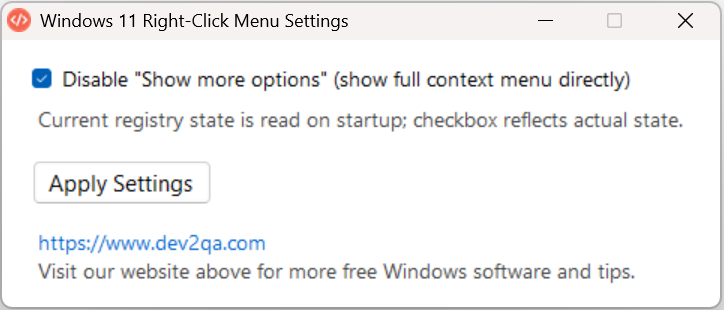
- Launch the tool: Open the downloaded utility executable file. The program launches instantly with no bundled plugins or pop-up ads.
- Enable the optimization: In the tool window, check the option labeled Disable Show More Options to activate the menu optimization feature.
- Save changes: Click Apply Settings to commit the configuration, then click OK to finalize the changes.
- Restart File Explorer: Manually restart Windows File Explorer. This mandatory step ensures the registry modifications take full effect without delay or failure.
- Check the optimized menu: After refreshing File Explorer, right-click any drive partition or folder. The redundant “Show more options” entry will no longer appear, and all menu items will display directly with no extra click required.
- Restore Windows 11 default behavior: To revert to the original system menu, reopen the tool and uncheck the Disable Show More Options option.
- Confirm restoration: Apply and save the new settings, then restart File Explorer again. The default “Show more options” entry will reappear, restoring the official Windows 11 right-click menu style.
3. Working Principle.
This lightweight optimizer works by modifying a specific Windows registry key, replacing error-prone manual editing with fully automated, one-click mode switching. The technical mechanism is as follows:
- Access the Registry Editor: The tool invokes the Windows Registry Editor backend system configuration interface.
- Navigate to the target path: It precisely targets the dedicated registry path:
Computer\HKEY_CURRENT_USER\Software\Classes\CLSID\{86ca1aa0-34aa-4e8b-a509-50c905bae2a2}. - Modify the core entry: The tool adjusts the value data of the InProcServer32 key, which controls the display mode of the Windows 11 right-click menu.
- Toggle functionality via key value adjustment: Checking the disable option clears the InProcServer32 value data to hide the “Show more options” menu. Unchecking it restores the original value and reverts to the system default state.
4. Core Advantages
Compared with manual registry editing, complicated online guides and bloated third-party optimization software, this custom-built tool delivers superior usability for daily Windows 11 operation:
- Beginner-friendly: No complex registry navigation or manual value edits. The entire process relies on simple visual clicks, suitable for all user levels.
- System-safe operation: Unlike manual registry tweaks that may cause system anomalies due to incorrect edits, this tool only modifies one designated registry entry with zero invalid operations, ensuring system stability.
- Lightweight and zero overhead: The tool features a tiny file size, requires no installation, runs in no background process and consumes no system memory, leaving computer performance unaffected.
- Free bidirectional toggle: Users can freely switch between the fully expanded optimized menu and the official default menu based on personal habits.
- Boost productivity: Eliminates redundant clicks, greatly improving efficiency for daily file management and office operations.
5. Tool Expansion & Custom Development.
This right-click menu optimizer is just one of many lightweight practical utilities built with Vibe Coding. Windows systems contain numerous repetitive, cumbersome operations and complex configuration items in daily use.
We can develop more customized mini Windows tools to simplify tedious system operations into one-click intelligent functions, covering system optimization, UI customization, shortcut configuration and more scenarios.
You can submit your personalized feature and tool requests. We will continue to build practical, easy-to-use Windows utilities to simplify computer operations and improve overall user efficiency.
6. Demo Video
You can watch the demo video and select your preferred subtitle language.