1. The Persistent Desktop Enigma: Why Can’t You Just Delete It?
Upon a fresh installation of Windows 11, users are greeted by a desktop shortcut labeled “Learn about this picture”. This icon serves as a gateway to the Windows Spotlight feature, which delivers stunning, rotating lock-screen wallpapers. However, a common frustration arises when attempting to remove it. Dragging it to the Recycle Bin does nothing, and right-clicking reveals no “Delete” or “Remove” option in the context menu. Previous solutions involved diving into the Registry Editor—a risky and complex procedure, especially for casual users. This creates a clear demand for a simpler, safer, and more intuitive method to manage this persistent desktop element.
2. Introducing SpotlightIconManager: A Minimalist Yet Powerful Solution
In response to this challenge, the developer employed the modern “Vibe Coding” approach to create a dedicated utility called `SpotlightIconManager`. This executable is incredibly lightweight, taking up a mere 100KB of disk space. It is fully portable, requiring no installation—just double-click to run. The tool acts as a user-friendly wrapper around the underlying system configurations. Its primary function is to replace manual registry edits with a clean, graphical button-click interface, effectively democratizing system customization. With this utility, managing the Spotlight icon becomes a matter of seconds, making it accessible to users of all technical levels.
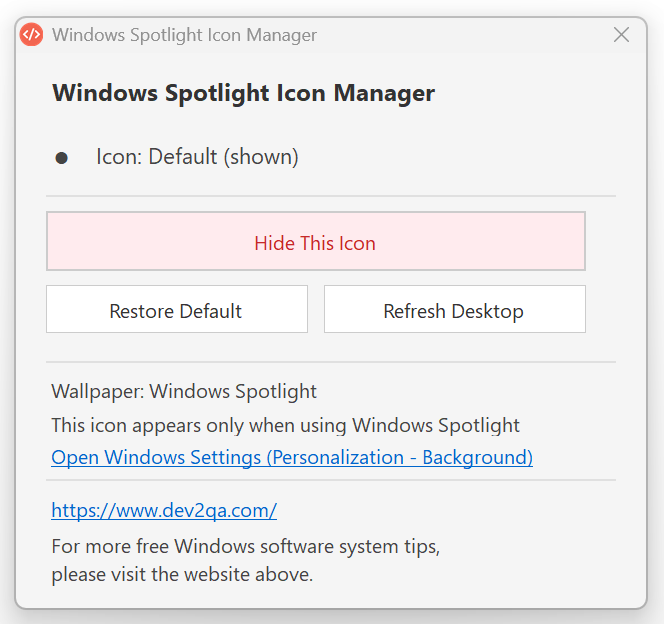
3. Step-by-Step GUI Workflow: Toggle Icon Visibility with One Click
The graphical user interface is designed for maximum clarity and efficiency. Follow these straightforward steps to manage the icon:
- Launch the Application: Locate the `SpotlightIconManager.exe` file and double-click it. A compact window titled “Windows Spotlight Desktop Icon Manager” will appear.
- Identify Current Status: The interface will explicitly display the icon’s state, such as “Shown” .
- Hide the Icon: Click the button labeled “Hide This icon.” A confirmation dialog will pop up, stating “Learn about this picture icon has been hidden.” After clicking “OK,” the desktop icon vanishes instantly. The main window will then update to reflect the “Hidden” state, and the button’s label changes to “Show This icon.”
- Restore the Icon: To bring the icon back, simply click the newly appeared “Show This icon” button. The icon will reappear on the desktop without any delay.
- Quick Access to System Settings: Below the primary button, there is a clickable link that says “Open Windows Settings Personalization Background.” This provides a convenient shortcut to the relevant system settings page, allowing users to swiftly change their desktop background source.
4. Advanced Features: Automatic Language Adaptation and Conditional Logic
The tool demonstrates sophisticated design through its multi-language support and context-aware behavior.
- Seamless Auto-Detection: The interface automatically adapts to your Windows display language. It supports Simplified Chinese , Traditional Chinese and English. The tool detects the OS language on startup and loads the corresponding resource file. If your system language is none of these three, it defaults to English, ensuring broad usability.
- Contextual Button Activation: An important conditional logic is built in. The “Hide/Show” buttons are only enabled when the desktop background is set to “Windows Spotlight.” If you change the background to a solid color or a static picture, the desktop icon automatically disappears, and the tool’s buttons will gray out, indicating they are non-operational.
- Command-Line Precision: For power users and automation scripts, the tool supports command-line arguments to override the automatic language selection. This is particularly useful in multi-user environments or for international deployment. Here’s how it works:
– Navigate to the tool’s directory in a terminal.
– Execute `SpotlightIconManager.exe –lang zh` to force the interface to display in Simplified Chinese.
– Execute `SpotlightIconManager.exe –lang zh-TW` to force the interface to display in Traditional Chinese.
– Without any arguments, the tool defaults to the automatic OS language detection.
5. Beyond a Single Tool: Expanding Your System Utility Arsenal
This application is part of a broader collection of Windows utility tools, all crafted with the same philosophy of simplicity and efficiency. The overarching goal is to strip away unnecessary complexity from routine system maintenance tasks, thereby boosting overall user productivity. By offloading menial configurations to these compact, purpose-built applications, users can reclaim their focus for more impactful work. We invite you to explore these utilities and share your feedback or suggestions in the comments section below. Stay tuned for more practical tools and system tips in our upcoming content.
6. Demo Video
You may watch the demonstration video below and select your preferred subtitle language.