1. What Is Win11 Official ISO Tool and Why Should You Care?
Win11 Official ISO Tool is a lightweight Windows utility that ships as a single executable. Double-click it, and you are ready to go. Its main purpose is simple: help you find and open Microsoft’s official Windows 11 ISO download pages without getting lost in third-party mirrors, while reducing the risk of grabbing a tampered image.
The tool packs three core features:
- Official ISO download
- ISO image tools (parse, mount, unmount)
- SHA256 calculation and verification
Whether you want the latest Windows 11 build, need to inspect an existing ISO, or want to confirm that a downloaded file has not been modified, this tool has you covered. The UI supports Simplified Chinese, Traditional Chinese, and English, and it automatically matches your system language by default.
2. How To Use the Official ISO Download Feature
This is the first tab and the most straightforward feature. The idea is simple: pick a language, and the tool opens the corresponding Microsoft download page for you.
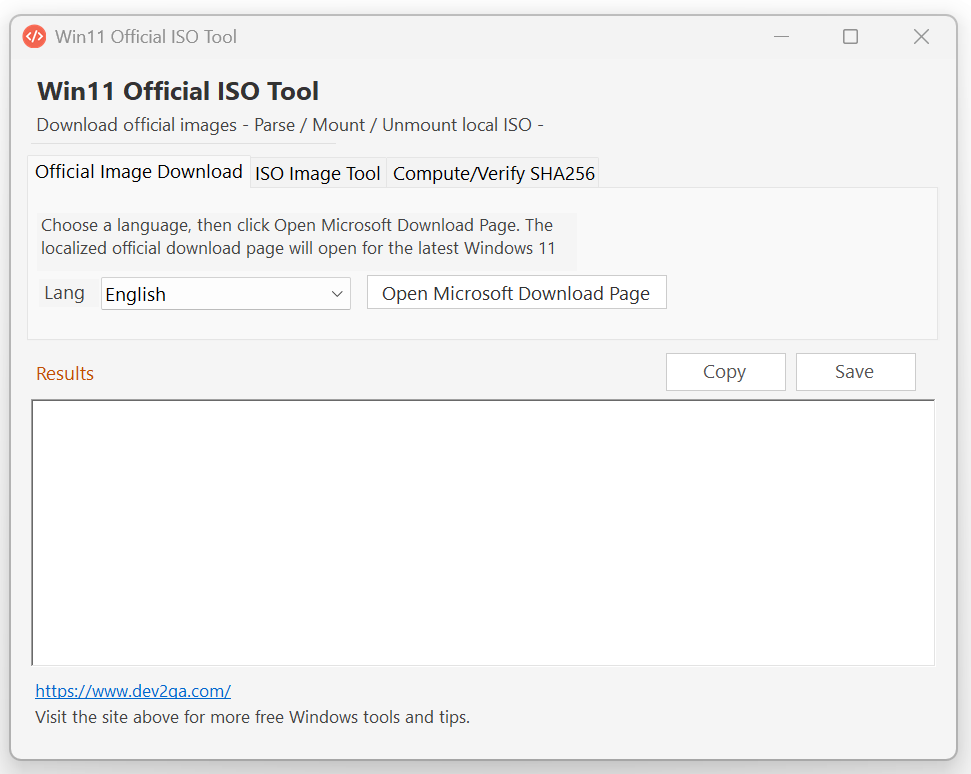
Steps:
- Double-click Win11 Official ISO Tool executable file to launch it.
- Click the “Official ISO Download” tab.
- Choose the Windows 11 language you need, for example, Simplified Chinese.
- Click the “Open Microsoft Official Download Page” button.
- Your browser opens Microsoft’s official Windows 11 ISO download page.
- Scroll down and select the edition you want.
- Click “Download Now”.
- Select the language again, for example, Simplified Chinese.
- Click “Confirm”.
- Click the “64-bit Download” button to start downloading the ISO.
Need the English version? Just pick “English” in the tool and hit the button. Want Traditional Chinese? Same deal. The real advantage here is that you do not have to remember Microsoft’s download URLs or dig through search results. The tool jumps you straight to the right official page in the language you selected, and you always get the latest build.
3. How To Parse, Mount, and Unmount ISO Files
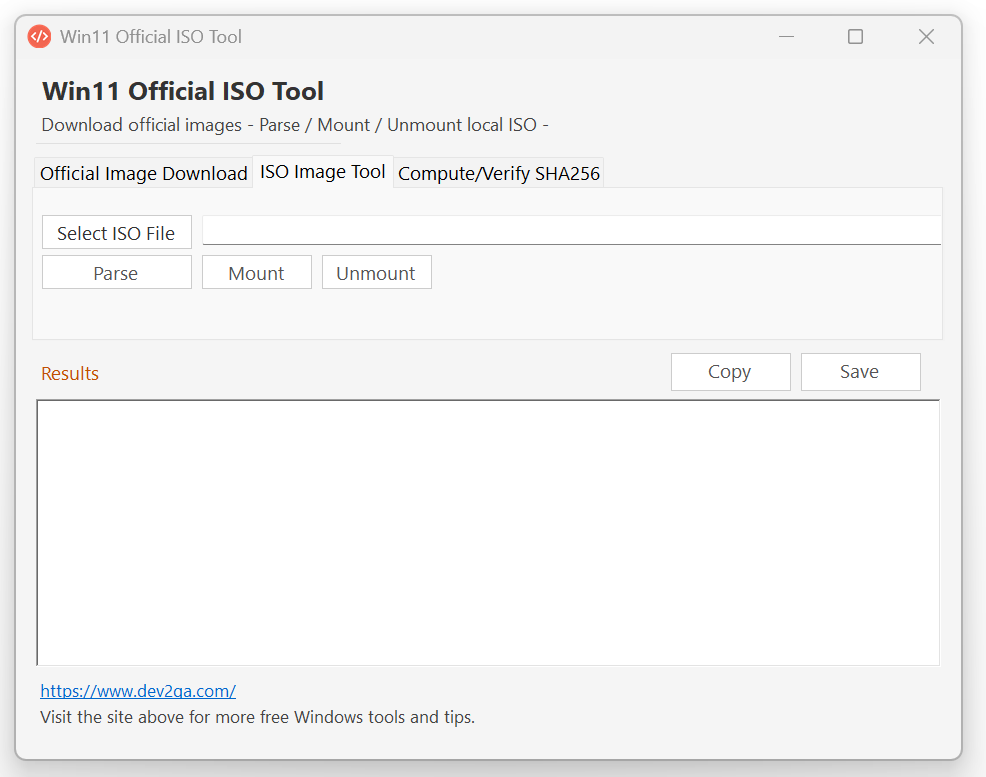
Once you have downloaded an ISO from Microsoft, switch to the second tab: ISO Image Tools. This feature works with official images as well as third-party ones, such as Windows 7 ISOs.
3.1 Parsing ISO Information
- Click the second tab to open ISO Image Tools.
- Click “Select ISO File”.
- Pick the image you want to inspect.
- Click the “Parse Information” button.
- Wait for the progress bar to finish.
- The parsed results appear in the text box below.
The output typically includes:
- Build information
- Edition information (which editions are inside the ISO)
- Architecture information
- Language information
For example, select a Windows 7 ISO, and the tool lists editions like Windows 7 Starter and Home Basic, so you know exactly what is inside.
3.2 Mounting and Unmounting an ISO
- Select an ISO file.
- Click the “Mount” button.
- Wait a moment; the tool reports the drive letter, for example, E:.
- Open File Explorer and you will see the mounted image content.
- Click the “Unmount” button.
- The tool confirms unmounting, and the drive disappears from File Explorer.
3.3 Copying and Saving Results
In the top-right corner of the result text box, you will find two handy buttons:
- Copy Results: copies everything to the clipboard so you can paste it into any text editor.
- Save Results: opens a dialog so you can save the output, for example, to your desktop.
ISO Image Tools lets you parse, mount, unmount, copy, and save results, and it works with both official and third-party ISOs so you can verify exactly what you have.
4. How To Calculate and Verify SHA256 Hashes
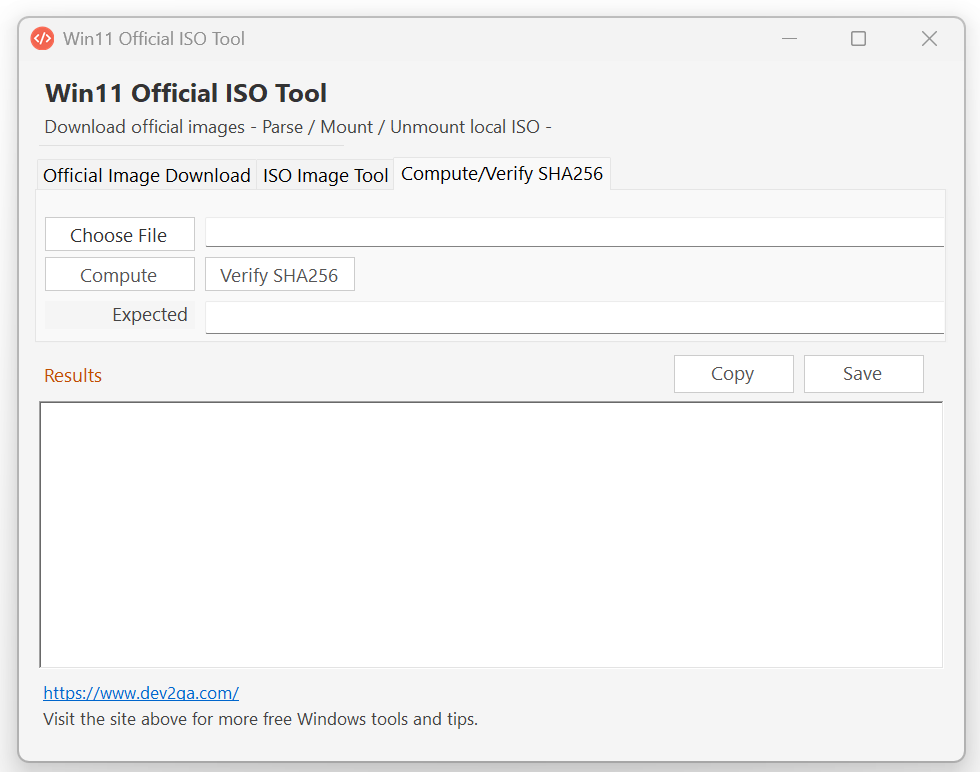
The third feature is “Calculate/Verify SHA256.” SHA256 is a 64-character hexadecimal string that acts like a digital fingerprint for a file. After downloading a Windows ISO, you can compute its SHA256 value and compare it against the hash published by Microsoft. If they match exactly, the file is intact, uncorrupted, and untampered.
4.1 Calculating SHA256
- Click the “Calculate/Verify SHA256” tab.
- Click “Select File”.
- Choose a file, for example, a Windows 10 ISO.
- Click the “Calculate SHA256” button.
- The tool displays the hash value.
- Compare it with the value provided on the download page.
4.2 Verifying SHA256
- Locate the verification input field on the same page.
- Paste the official SHA256 checksum.
- Select the file you downloaded, for example, a zip package.
- Click the “Verify SHA256” button.
- If it says “Verification passed, matches the input” the file is safe.
- If it says “Verification mismatch” either the checksum you entered is wrong, or the file may have been tampered with.
This feature is not limited to ISO files. You can use it on any file, which makes it a great habit for anything you download from the internet. SHA256 calculation and verification is essentially a fingerprint comparison: if it matches, you are good; if not, treat the file with suspicion.
5. How To Switch UI Languages With Command-Line Arguments
The tool supports Simplified Chinese, Traditional Chinese, and English interfaces. You can specify the startup language with the `–lang` command-line argument.
Steps:
- Open a command-line window.
- Run the executable with a language parameter.
- English UI: `–lang en`, then press Enter.
- Traditional Chinese UI: `–lang zh-TW`, then press Enter.
- Simplified Chinese UI: `–lang zh`, then press Enter.
- If you omit `–lang`, the tool follows your system language automatically.
- The default fallback is English.
6. Final Thoughts: One Tool for Downloading, Parsing, Mounting, and Verifying
All in all, Win11 Official ISO Tool bundles four common but tedious tasks into one place:
- Quickly find the latest official Windows 11 ISO in multiple languages.
- Parse any ISO to confirm editions, architecture, and language.
- Mount or unmount an ISO for direct inspection.
- Calculate and verify SHA256 to ensure the file is safe and untampered.
The UI is clean, the workflow is straightforward, and the multilingual support is a nice touch. If you frequently deal with system images or like reinstalling Windows yourself, this tool is worth a look.
7. Demo Video
You can watch the following demo video by select the subtitle to your preferred subtitle language.