1. Why a File’s “Digital Fingerprint” Matters
Downloading installers, archives, and documents is part of everyday computing, yet few of us stop to ask whether the file we received is really the one the vendor published. Files can be altered in transit or hijacked along the way, and a swapped payload ranges from a broken install to a genuine security risk. A hash value works like a file’s digital fingerprint: change a single byte and the hash changes completely. That makes hash calculation and comparison a dependable way to confirm a file is intact and comes from the official source. This is exactly the problem File Hash Checker, a small Windows utility, is built to solve. Its job is to calculate a file’s hash and to verify that the hash of your download matches the one published by the official source, so you can be confident the file has not been tampered with, has not been hijacked, and is safe.
2. The Tool’s Screenshots
2.1 English UI
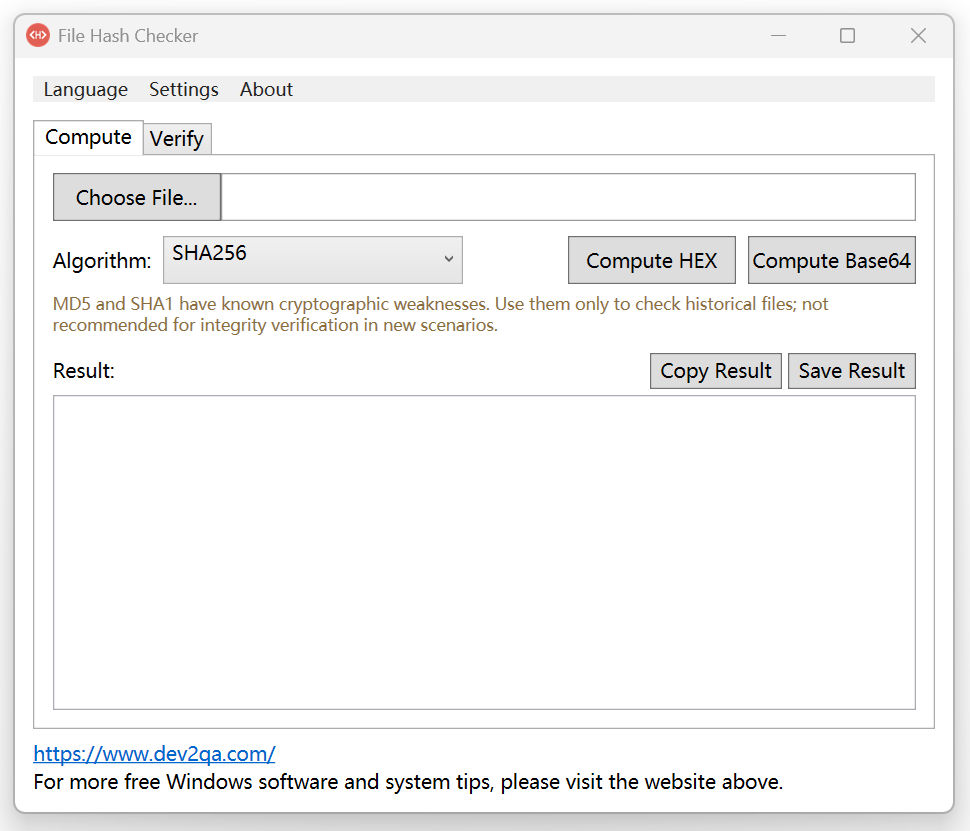
3. Quick Start: Three Steps to a File’s Hash
The tool is refreshingly direct, and calculating a hash takes only a handful of actions. Here is the workflow, using the SHA256 hash of a ZIP file as the example:
- Double-click File Hash Checker to launch the utility.
- Click the Calculate tab to open the calculation view.
- Click the Select File button, pick the file you want to hash—a ZIP file, for instance—and click Open.
- In the algorithm area you can see that the software supports a range of hash algorithms; for this walkthrough we will use SHA256.
- Click the Calculate HEX button and, after a moment, the file’s hash value appears.
- Click Copy Result to place the hash on the clipboard.
- Open Notepad and press Ctrl+V to paste the hash there, ready to save or compare later.
4. Is Manual Comparison Good Enough? Why the Verify Feature Matters
The usual purpose of a hash is to confirm that the file you downloaded really came from the official website and has not been tampered with, hijacked, or otherwise compromised. The manual approach is straightforward: grab the hash published on the official site, paste it into a text box, and compare it with the value the tool computed. If they look identical, the file is the official one and is safe. The catch is that manual comparison is error-prone—these are long strings, and missing a single character is easy. That is why the software ships with a dedicated Verify feature that automatically checks whether the hash of your download matches the official value, handing the fragile human comparison over to the program.
5. Verifying in Practice: From the Official Checksum to “Verification Successful”
The Verify workflow is just as clear. Here it is step by step:
- Click the Verify tab to switch to the verification view.
- Click Select File and choose the file you want to verify.
- Under Algorithm, select SHA256, since the official hash in this case is an SHA256 hash.
- Go to the official website and copy the published SHA256 checksum, that is, the hash value.
- Back in the utility, paste that hash into the Reference hash for verification text box.
- Click the Verify HEX button; the tool reports “Verification successful,” confirming that the file you downloaded is the official one.
- To see what a failure looks like, edit the hash—change the last character, for example—and click Verify HEX again. The tool reports a verification failure, because the file’s hash and the value you entered no longer match.
6. Three Menus Worth Knowing: Language, Settings, and About
Beyond the core hashing and verification features, the utility adds a few thoughtful touches through three menus at the top of the window.
- The first is the Language menu, which supports three languages: Simplified Chinese, Traditional Chinese, and English. By default it follows the display language of your Windows installation—if the OS is set to Simplified Chinese, the tool opens in Simplified Chinese; if the OS default is English, it opens with an English interface; and if the OS language is anything other than these three, it also falls back to English. Switching languages immediately shows the English and Traditional Chinese interfaces.
- The second menu is Settings, which offers two more features: “Minimize to system tray on close” and “Launch at Windows startup.”
- The third menu is About; click it and a window pops up describing the software, including its name, version, and official website. The author notes that the same three menus will appear across the series of Windows utilities to come, giving the tools a consistent interface.
7. Tray and Startup: What the Two Toggles Actually Do
Both options in Settings are worth trying. Here is what each one does:
- In Settings, click “Minimize to system tray on close” and a check mark appears next to the menu item.
- Click the upward arrow in the Windows bottom-right corner to reveal the File Hash Checker icon; if you now close the tool, it minimizes to the system tray instead of exiting.
- Click the upward arrow to see the tray icon, right-click it, and choose Open File Hash Checker to bring the tool back.
- If you enable “Start with Windows” the tool will also start automatically the next time you restart Windows.
- With both options enabled, the tool starts at boot and goes straight to the tray rather than appearing on the desktop; with only “Start with Windows” enabled, it opens on restart and minimizes to the taskbar.
- Both features are optional—you can turn either one on or off at any time.
8. Config File and Registry: How the Two Features Work Under the Hood
These two features are more than UI toggles, and each has its own implementation.
- When you enable the first one, the tool creates a configuration file in the same directory as the software—a JSON file. Open it and you will find a single key-value pair, CloseToTray, whose default value is 0; the file is only created the first time you enable the feature.
- The second feature, Start with Windows, works directly on the Windows registry: Windows has a startup entry that records which programs launch automatically, and when you enable this feature the tool adds itself to that registry entry so it starts with the system. Knowing these details pays off when you troubleshoot configuration issues or migrate the software to another machine.
Computer\HKEY_CURRENT_USER\Software\Microsoft\Windows\CurrentVersion\Run
9. Final Thoughts: Make File Safety a Habit
With this tool on hand, calculating a file’s hash and verifying that the hash is correct becomes genuinely convenient. Its value is not complexity but the way it turns a tedious, error-prone comparison into a few clicks, making file integrity verification a natural step after every download. Whether you are a casual user or someone who handles installers all day, hash verification deserves a place in your security routine. Thanks for watching and for your support—feel free to leave a comment below, and see you in the next video.
10. Demo Video
You can watch the following demo video by select the subtitle to your preferred subtitle language.