1. Add a Sense of Ritual to Your Windows Login: The Complete Guide to Custom Startup Sounds
In the digital age, computers are essential companions for our work and entertainment. Every time you press the power button, wait for the system to load, enter your password and reach the desktop, the whole process feels familiar yet somewhat monotonous. Have you ever thought about adding unique personal touches to this routine task? For instance, the moment you successfully log in after entering your password, instead of hearing the generic default system sound, your PC could play hand picked applause, the classic Windows 95 startup jingle, or even a short motivational voice clip. This does not require complicated low level system modifications, you can achieve this fun customization with a compact lightweight utility.
2. Meet Your New Tool — Windows Startup Sound Manager
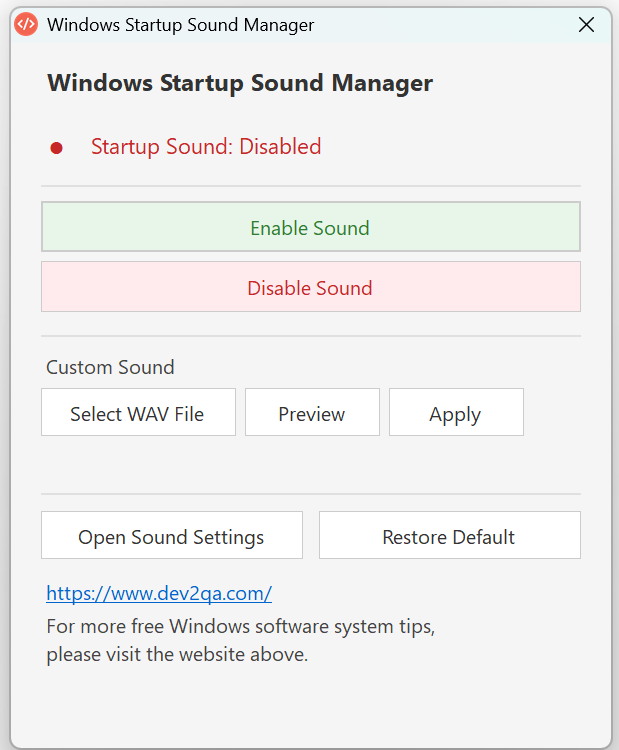
To enable this feature, you do not need to dig into the Windows Registry or write complex scripts. All you need is a small application called Windows Startup Sound Manager. It boasts a clean, user friendly interface with clearly laid-out core functions. This utility was built specifically to address the limitation that Windows does not offer a straightforward way to replace the login sound. It wraps complex background operations inside a visual window, making customization accessible for ordinary users.
Once you download and launch the tool, you will see a tidy main interface featuring key buttons: Select WAV File, Preview, Apply, Enable Sound, Disable Sound, and Open Windows Sound Settings. Think of it as a dedicated audio steward that manages your computer’s welcome tune.
3. Select and Apply Your Custom Startup Sound
The first step toward customizing your sound is picking your preferred audio file. The tool follows intuitive logic, follow these steps:
- Click the Select WAV File button on the main interface.
- In the pop-up file dialog, browse to the folder storing your audio. Note that this utility only accepts standard WAV format audio files.
- Choose your prepared WAV file — for example, the nostalgic Windows 95 startup sound mentioned in the video, or any movie quote or nature sound effect you like.
- After selection, the filename will appear on-screen for confirmation.
- Click Preview to play the selected audio, so you can verify the effect before applying it.
- When satisfied, click Apply. Since this action modifies system settings, the program will request administrator privileges. Click Yes to proceed.
- Your custom sound is now active. To test it, sign out of your current user account and log back in. When the desktop reloads, you will hear your newly assigned custom login sound.
4. Understand Sound Toggle and System Integration
This tool is more than a simple sound-replacement utility. It intelligently handles conflicts and integration with native Windows sound settings. Windows Sound Settings includes a checkbox labelled Play Windows Startup sound, which controls the built-in system login tone.
After you apply a custom sound, the tool will automatically uncheck this system option to prevent both sounds from playing simultaneously. This automatic handling ensures your custom audio plays clearly on its own.
If you grow tired of your custom sound and wish to restore defaults or mute login audio entirely, convenient one-click controls are available. Use the built-in Enable Sound and Disable Sound buttons, so you do not need to hunt through nested Windows settings manually.
5. Command-Line Power: Multi-Language Interface Switching
For power users who value efficiency or require multilingual support, the utility offers practical command-line functionality, demonstrating flexible, open-ended design. Instead of launching the GUI by double-clicking the icon, you can run the executable with arguments to force a specific UI language. This is especially useful for demonstrations across different locale environments.
5.1 Procedure
- Open Command Prompt (CMD) or PowerShell.
- Navigate to the folder containing Windows Startup Sound Manager.
- Run the executable with the `–lang` parameter followed by a language code.
5.2 Examples
- For English UI: StartupSoundManager_2026_09_02_10_34_09.exe –lang en.
- For Simplified Chinese UI: StartupSoundManager_2026_09_02_10_34_09.exe –lang zh
- For Traditional Chinese UI: StartupSoundManager_2026_09_02_10_34_09.exe –lang zh-TW
If you launch the program normally without parameters, it auto-detects your Windows system display language and loads the matching interface. This thoughtful implementation greatly improves overall user experience.
6. Closing Remarks
Following these steps, you can transform a standard Windows login into a personalized welcome experience. Beyond core functionality, this little tool shows great attention to detail in interaction design and multi-language support. It proves that even minor personalization wishes can turn daily computing into something enjoyable through clever engineering. With this guide, create your own Windows login sound and make every boot-up a pleasant moment.
7. Demo Video
You may watch the demonstration video below and select your preferred subtitle language.