1. Meet the Tool: Explorer Retro Helper — Portable, Double-Click Ready
Hey everyone. Today I’d like to walk you through a lightweight Windows utility I built: Explorer Retro Helper. This is a portable app — no installation required. Just double‑click it, and you’re good to go. Its purpose is straightforward: restore the Windows 11 File Explorer’s classic Windows 10 Ribbon UI with one click, and revert every change just as easily.
Here’s what makes it stand out:
- Portable & run-on-click: No install wizards, no leftover files. Perfect for fans of portable/green software.
- One-click UI toggle: Swap Windows 11’s modern toolbar for the familiar Windows 10 Ribbon layout.
- Fully reversible: A dedicated restore option cleans up all registry tweaks and restores Windows 11’s default appearance.
- Built‑in multilingual support: Ships with Simplified Chinese, Traditional Chinese and English.
- Shortcut, Tray and Autostart Support: It supports shortcut creation, minimization to the system tray, and configurable Windows autostart, so users can call up the tool whenever needed.
At its core, this is a system UI customization tool for everyday users. The goal is simple: let anyone enjoy the retro File Explorer look without manually editing the Windows Registry.
2. The Tool’s Screenshots
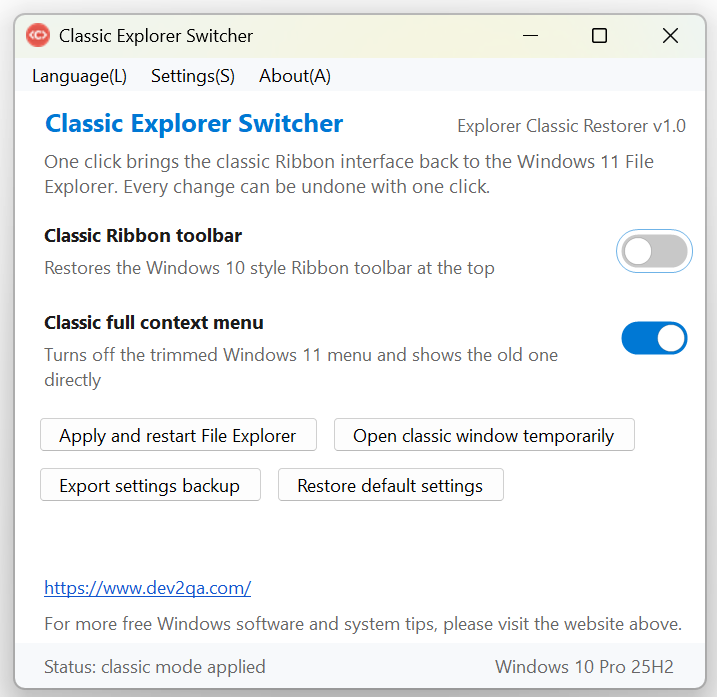
2.1 English UI
3. Classic Ribbon: Switch Between Win10 and Win11 Toolbars in Seconds
Toggling the classic Ribbon is simple. Once you launch the tool, you’ll see a toggle labelled Classic Ribbon toolbar. Here’s how it works:
- First, verify your File Explorer is currently using Windows 11’s modern top bar.
- Flip on the Classic Ribbon toolbar toggle inside the utility.
- Hit Apply and restart File Explorer button.
- Once Explorer reloads, the top interface will switch to the Windows 10 Ribbon style.
- To revert: turn the toggle off, click Apply and restart File Explorer again, and you’re back to the Windows 11 layout.
What I like about this workflow:
- Symmetric, clean operation: Toggling back and forth leaves no residual settings behind.
- Automatic Explorer restart: No need to hunt for the process in Task Manager and kill it manually.
- Immediate results: Changes take effect as soon as Explorer reloads.
All in all, the Classic Ribbon toggle is the flagship feature of this tool. One switch plus an apply button lets you bounce freely between Win10 and Win11 Explorer toolbars.
4. Classic full Context Menu: Bypass the “Show more options” Extra Click
Beyond the Ribbon, Windows 11’s redesigned right‑click menu is a common pain point. It only surfaces a short list of actions by default, forcing you to click Show more options to access the full menu. This tool includes a dedicated toggle for the Full traditional context menu to fix exactly that.
- Leave the Classic full Context Menu toggle disabled for now.
- Open any folder and right‑click. You’ll see the default Windows 11 context menu with the extra Show more options step.
- Head back to the tool and enable the toggle.
- Click Apply and restart File Explorer.
- After reload, right‑click again — the complete legacy menu appears directly, with no extra submenu required.
This is especially useful if you regularly use advanced options like compression, Send To, or Properties. Simply put, this toggle eliminates the buried-menu annoyance in Win11 and exposes all context actions in a single view.
5. Temporary Classic Window & Config Backup Export: Preview Risk‑Free, Audit All Changes
Right next to the Apply button sits Open classic window temporarily. This is for preview purposes: even when the Classic Ribbon toggle is disabled, this button spawns a standalone File Explorer window with the Win10 Ribbon UI. It lets you test the classic look without altering global system settings.
Quick steps:
- Ensure the Classic Ribbon toolbar toggle is off.
- Click Open classic window Temporarily.
- A preview Explorer window with the legacy top bar will launch for temporary use.
6. Export settings backup – Save your registry changes
Beneath that you’ll find Export settings backup. When clicked, the tool shows you the exact save path: a `.reg` file stored in your Documents folder. Open it with Notepad, and you can inspect every registry path and value modified by your current selections.
- Click Export settings backup.
- Note the file path shown in the prompt (under Documents).
- Right‑click the `.reg` file and open it in Notepad.
- Review the registry keys to see exactly what your configuration changes.
- If you enable another option, apply it, then export again, the backup will include the additional registry entries controlling your Ribbon and context menu preferences.
To sum up: the temporary preview window offers a zero‑commitment way to test the legacy UI, while config backups make every underlying registry change transparent and inspectable for power users.
7. Restore Defaults, Multilingual UI, Tray Minimization & Autostart
If you want to fully reset everything back to stock Windows 11, click Restore default settings and confirm the prompt. This removes all custom registry entries created by the tool.
- Click Restore default settings.
- Confirm with Yes.
- Check File Explorer: both the Ribbon and context menu revert to Windows 11 defaults.
- On top of that, the app supports three display languages and packs several quality‑of‑life options under the Settings menu:
- Create a desktop shortcut: Creates a desktop shortcut for fast access.
- Minimize to system tray on close: Hides the app to the tray instead of exiting when you close the main window.
- Start automatically with Windows: Launches the utility on boot — ideal if you want the classic Explorer UI permanently.
You can flip these options on or off to match your workflow. Between the one‑click reset, multilingual interface, tray support, autostart and desktop shortcuts, the tool is built for convenient daily use.
8. Wrap‑Up: The Philosophy Behind This Tiny Utility
At the end of the day, Explorer Retro Helper wraps manual registry tweaking into a simple set of toggles and buttons. It saves you from hunting down and editing registry keys by hand and streamlines the whole customization process.
If you miss the familiar Windows 10 File Explorer experience and don’t want to mess with the Registry yourself, this portable tool is well worth a try. I’ve built a collection of other lightweight Windows utilities aimed at simplifying system tweaks and boosting productivity.
9. Demo Video
You can watch the following demo video by select the subtitle to your preferred subtitle language.