1. Introduction: Limitations of Native Windows Lock & WinIdleLock Overview
For anyone working at a desk, stepping away from your PC without locking it creates obvious privacy risks. Your documents, chat records and private files can easily be viewed by others. Windows built-in idle locking is rigid and lacks flexible controls. It is tricky to trigger lock after a short idle period, and there is no native option to turn off your display immediately once locked. Laptop users often struggle between keeping their device secure and preserving battery life.
WinIdleLock, also known as Idle Auto-Lock Assistant, is a self-developed portable Windows utility. It is completely free, ad-free, plugin-free, and does not come with bundled installers. No installation is required; you only need to launch the executable file directly. It leverages native Windows registry policies to implement idle locking, balancing privacy protection and power saving. It also includes status inspection, change logging, tray background operation and auto-start features. It is ideal for office workers, laptop users and enthusiasts who value system privacy.
2. The Tool’s Screenshots
2.1 English UI
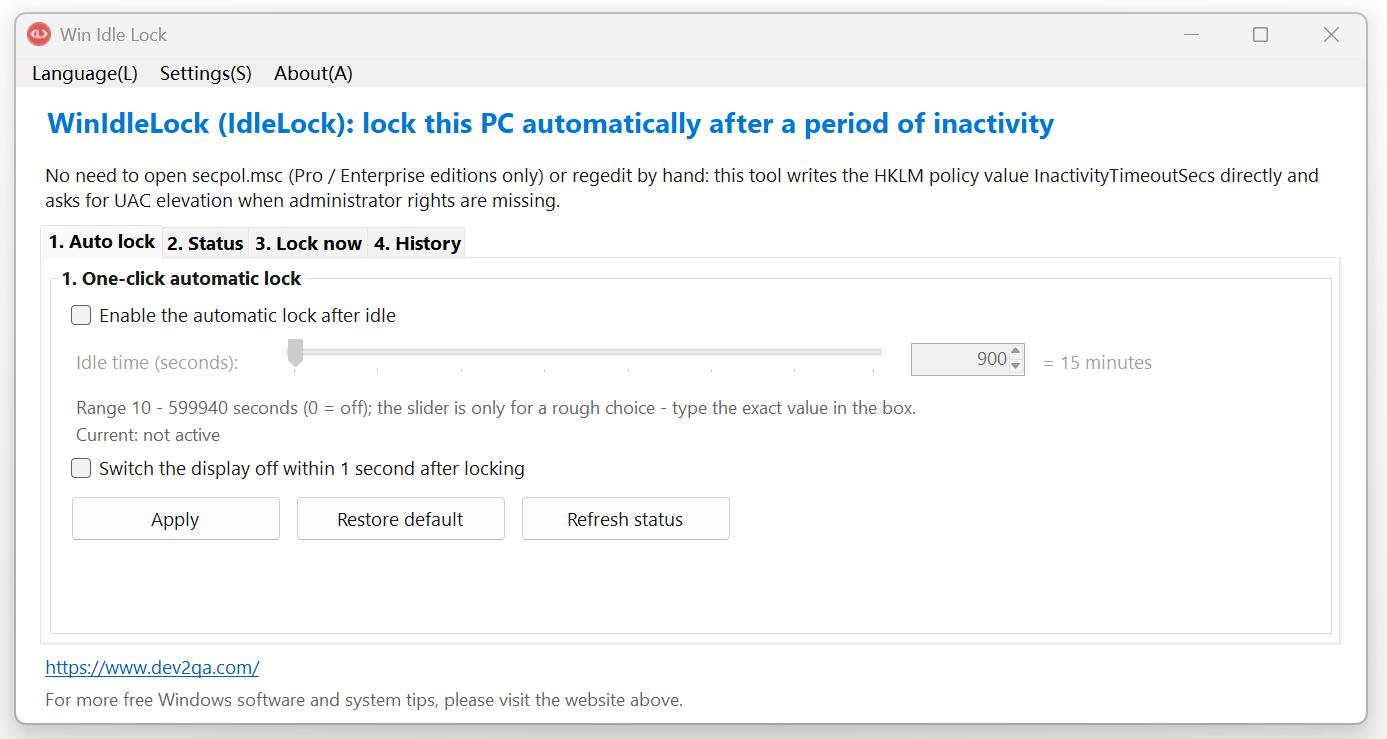
Once you run the executable, the main window contains four separate tabs: Quick Setup, Status, Manual Lock, and Change History. All core configurations are neatly arranged for easy navigation, even for beginners.
- Save the WinIdleLock executable anywhere on your computer. No installation routine is needed; double-click to launch it.
- Review the four tabs on the main interface: Quick Setup, Status, Manual Lock, Change History.
- Learn the two core checkboxes: Enable the automatic lock after idle and Switch the display off within 1 second after locking. These two functions can work independently or together.
- Locate the three control buttons at the bottom: Apply, Restore defaults, Refresh status. They save your configuration, reset parameters and refresh the displayed status.
3.1 Configure Idle Lock and Post-Lock Display Power Off in Quick Setup
The Quick Setup tab is the core panel of this utility. Here you define idle timeout and the display shutdown rule. The minimum idle threshold is 10 seconds, and you can set longer values as you prefer.
- Check the box labeled Enable the automatic lock after idle.
- Adjust the idle duration with the slider or input a numeric value directly. The minimum allowed value is 10 seconds.
- Select Switch the display off within 1 second after locking if you want the screen to power down shortly after locking. This cuts power consumption and extends laptop battery life.
- Confirm all parameters and click Apply button, then confirm in the pop-up prompt.
- Reboot your computer to activate the new settings.
- After reboot, leave your mouse and keyboard untouched and wait for the idle timeout to verify auto-lock behavior.
- If you enabled the display shutdown option, the monitor will turn off one second after the lock screen appears.
- The two checkboxes are independent. If you only enable the display shutdown rule, the screen will still turn off one second after lock no matter how you trigger the lock, including manual Windows lock.
3.2 One-Click Tab Settings – How to Restore Defaults
- To reset all rules back to Windows default, return to Quick Setup tab and click Restore default button.
- Confirm the prompt. The utility sets `InactivityTimeoutSecs` to zero, disables idle auto-lock and cancels the post-lock display shutdown rule.
- Reboot your PC. All lock-related settings revert to native Windows behavior.
3.3 Check Underlying Registry Values in the Status Tab
The Status tab shows all currently active parameters and the corresponding registry path. Advanced users can use this page to validate system-level configuration.
- Switch to the Status tab.
- The panel shows whether idle auto-lock is active and the current idle timeout value in seconds.
- The utility displays the registry path: `HKEY_LOCAL_MACHINE\SOFTWARE\Microsoft\Windows\CurrentVersion\Policies\System` and the registry key `InactivityTimeoutSecs`.
- Open Registry Editor and navigate to this path. The decimal value matches the idle seconds you configured.
- The status panel also indicates whether the post-lock display shutdown rule is active, highlighted for easy identification.
3.4 Manual Lock and Change History Tabs
These auxiliary tabs provide instant lock access and persistent logs for auditing every configuration change.
- Navigate to the Manual Lock tab. A single button lets you lock your screen instantly.
- Open the Change History tab to view all configuration modifications.
- All log entries are stored at `%LOCALAPPDATA%\WinIdleLock\history.log`, which you can open directly to inspect records.
4. Advanced Menu Options: Localization, Tray Mode & Auto Startup
The top menu bar includes Language, Settings and About. These options refine the utility to fit your daily workflow and let it run silently in the background.
- Language menu: Switch between Simplified Chinese, Traditional Chinese and English. The interface refreshes immediately after selection.
- Settings menu: Minimize to system tray on close.
When checked, clicking the close button hides the program instead of exiting it.
- The first time this option is enabled, a JSON config file will generate in the same folder as the executable to store this preference.
- Right-click the tray icon to restore the main window or trigger an instant lock.
- Settings menu: Auto-start on Windows boot.
Once enabled, WinIdleLock adds itself to the system startup list.
- Open Task Manager and go to Startup Apps; you will see WinIdleLock marked as enabled.
- The utility loads automatically on every subsequent boot without manual launch.
- About menu: Opens a dialog showing the application name, version and official website link.
5. Conclusion: Target Users and Practical Notes
This lightweight utility works great for office workers, students and anyone who carries a laptop frequently. Short idle auto-lock protects your screen when you step away, and the display-off feature reduces power draw to save battery.
All functionality relies on native Windows registry policies without heavy background services, making it stable and low-resource. If you encounter bugs or edge cases during testing, you are welcome to leave feedback.
6. Demo Video
You can watch the following demo video by select the subtitle to your preferred subtitle language.